
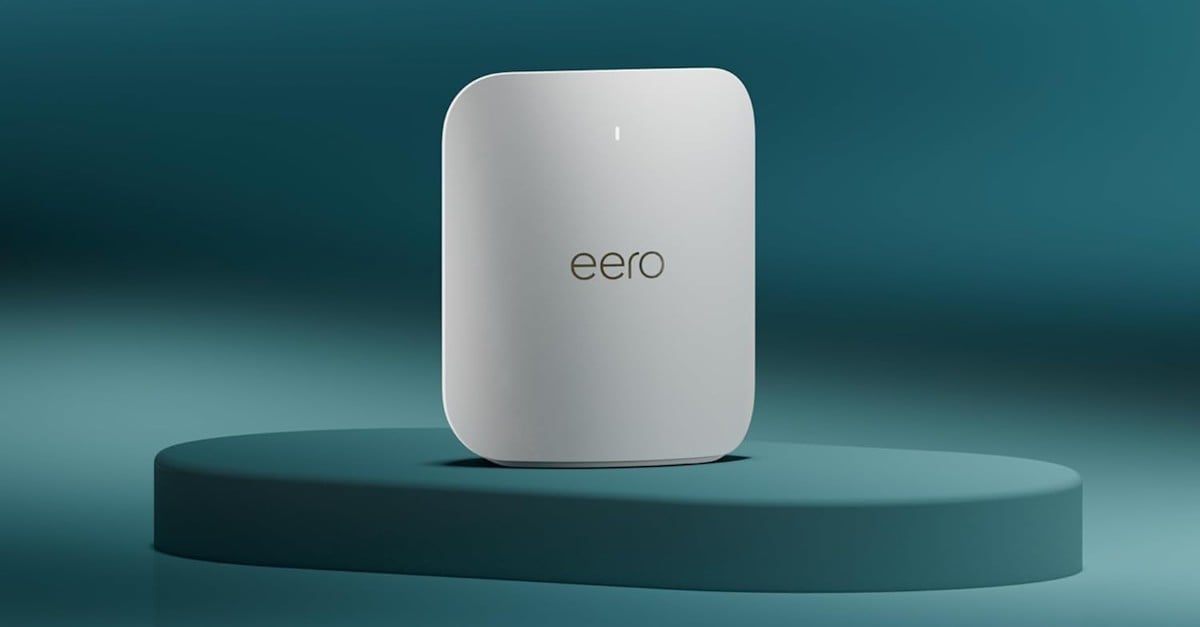
The new eero Pro 7 system is a high-performance mesh system, designed to cover your whole house with fast Wi-Fi and even faster wired connection.
The system is easy to install, even for New Zealand conditions. This is important because our ISPs have a combination of authentication methods and network settings in use, and the eero Pro 7 does a good job of supporting our conditions.
I received an eero Pro 7 3-pack, which comes with three mesh nodes, three power cables and one ethernet cable, to connect the main node to your network provider.
For my test I tried two different fibre providers. The first one uses a PPPoE connection with no VLAN, while the second one uses a similar PPPoE connection tagged with VLAN 10.
You can use any of the eero Pro 7 nodes in the box as your main gateway. You will also need to install an app, since all configuration is done through that.
I plugged the eero Pro 7 to my ONT and powered it on. A few seconds later the app found it and start an attempt to connect. I suspect it tried the easiest method, DHCP with no VLAN, which should work fine, if supported by the ISP.
As suspected, it correctly failed to connect, and the app showed me an option to update the connection settings. I then entered my PPPoE credentials, and it instantly connect.
It then proceeds to ask what you want to call the Wi-Fi network (SSID), what password to use, and it's all ready to go. If you use the same Wi-Fi SSID and password as your previous router, your devices should connect automatically.
I then reset the gateway and tried with the other ISP. As expected, it failed to connect on its first attempt, giving me the option to set any connection details. I entered the PPPoE credentials for this connection and toggled the VLAN tagging support, using the value 10.
Again, it connected instantly and proceeded to the Wi-Fi configuration.
My next steps were to add the other nodes to the mesh network. This is very easy to do, and the app guides you through the process. The connection can be done via Ethernet (more reliable and faster) or wirelessly.
Once I finished adding the nodes to the system, I just had to position them around the house for the best coverage. For this I use a third-party online service that allows you to draw your home (or import the floor plans), describe your network characteristics and then move the wireless access points around to find the best location. It takes in consideration glass, walls, beams and it’s very handy.
The whole process took a few minutes and was easier than other mesh systems I tried.
You can only have one main network plus a guest network. It supports IPv4 and IPv6, with IpV6 working out of the box for me with both ISPs I tested. You can create DHCP reservations and port forwarding, but despite having stateful firewall capabilities you can’t create or modify any rules. Likewise, you can change the LAN addresses but only with three options (192.168.0.0/16, 10.0.0.0/8 and 172.16.0.0/12) plus adjust the DHCP lease range. I’ve done this to ensure the devices connecting to the eero Pro 7 system were assigned addresses in the same ranges they had before.
The Wi-Fi supports both WPA2 and WPA3 wireless encryption, but the defaul for the system is WPA3 off, which I turned on very easily.
Each node of the eero Pro 7 system has two 2.5 Gbps Ethernet port. You use one port of the gateway to connect to your ONT, with the second port free to connect extra nodes, a switch or a device, depending on your network configuration.
The system supports the new Wi-Fi 7 standard (also known as 802.11be, with all previous standards a/b/g/n/ac and ax being supported.
You can’t turn on and off individual bands channel, neither adjust the band width, but it automatically manages this for you, covering 2.4 GHz (20,40 MHz), 5 GHz (20, 40, 80, 160, 240 MHz) and 6 GHz (20, 40, 80, 160, 320 MHz). Each band uses a 2x2 antenna configuration.
The app is easy to use, and clearly shows the network status, connected devices and even performs speed tests so you know the connection speed from your gateway, without wireless interference.
You can use the app even when away from home, but you should know that almost all configuration requires the system to be online, as local access is limited and there is no browser-based interface to manage the system from inside your LAN.
The erro Pro 7 system supports OpenThread in case you use this home automation standard.
Most interestingly (although I have not tested it), it can use certain Amazon Echo devices as network nodes, extending your network even further, without having to add new eero nodes.
Those looking for age-based web filtering will find out this is an addition to the platform, part of a subscription service called eero Plus. If you have kids at home and are considering parental controls, this is something to have in mind.
The system is based on the Qualcomm Immersive Home 326 Platform and each node has a 1.5 GHz quad-code CPU, 1 GB RAM and 4 GB flash storage to keep configurations. Each node is 180mm tall and 147mm wide, so they fit almost anywhere in your house.
Seeing this was my first experience with eero mesh systems, I was surprised with ease of use, speed and compatibility with our broadband services. This is ideal for those who want to futureproof their home network with an easy to setup system.


