
Geekzone: technology news, blogs, forums
Guest
Welcome Guest.
You haven't logged in yet. If you don't have an account you can register now.


View this topic in a long page with up to 500 replies per page Create new topic
1 | 2 
Kerry54321

39 posts

Geek
+1 received by user: 15


  #1664392 5-Nov-2016 21:50
Send private message

Oh sure, does not look like it will help much tho! The 'DSL link status' cycles thru the various stages thru to 'link down' then recycles.
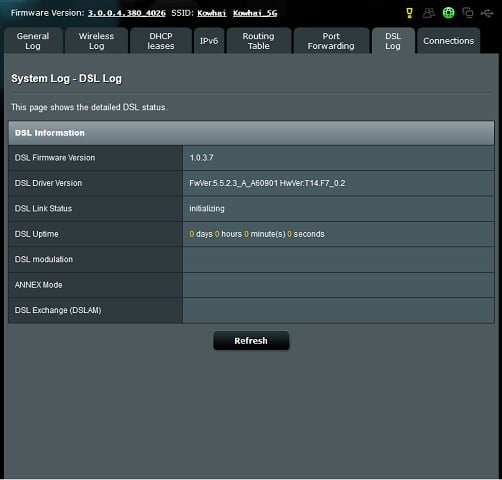


In addition, I now have a reply from Asus,


Re:<TSD> Wireless DSL-AC68U,Country=New Zealand;ASUS Service No=U161101508


they have told me to:


a. Switch to Ethernet WAN mode in “WAN”->”Dual WAN” page


b. Select “Automatic IP”, enable 802.1Q and set VLAN ID 10 in “WAN” -> “Internet Connection” page


I have done this, and it has made no difference.


sbiddle
30853 posts

Uber Geek
+1 received by user: 9996

Retired Mod
Trusted
Biddle Corp
Lifetime subscriber

  #1664607 6-Nov-2016 16:39
Send private message

If your DSL isn't syncing then nothing in the router settings will change this.


Kerry54321

39 posts

Geek
+1 received by user: 15


#1675448 22-Nov-2016 12:37
Send private message

Resolved.


There were 2 issues:


1. The new modem did not come with a BT plug. I installed the new filter and following cable, but used the old BT cable that worked fine on the other 2 modems I have. When I finally swapped this cable out as a last resort, I had a steady DSL light after about 30 seconds.


2. User SAATV picked up on this one, I needed to put @vodafone.co.nz after my user name. My other 2 modems, 1 supplied by Vodafone, and the other by Telecom (its old) do not require this. I'm guessing that modems provided by local Telco's are already set up for NZ, but 3rd party modems are not. Note that the Vodafone help desk will tell you that you do not require this.


Sincerely appreciate the input from everyone.


Cheers


1 | 2 
View this topic in a long page with up to 500 replies per page Create new topic


Geekzone Live »

Try automatic live updates from Geekzone directly in your browser, without refreshing the page, with Geekzone Live now.


Are you subscribed to our RSS feed? You can download the latest headlines and summaries from our stories directly to your computer or smartphone by using a feed reader.