Geekzone: technology news, blogs, forums
Guest
Welcome Guest.
You haven't logged in yet. If you don't have an account you can register now.


sezsays

14 posts

Geek
+1 received by user: 8


#312317 5-Apr-2024 21:48
Send private message

OK bear with me and sorry if this is long - I'm no tech expert but I very much love to solve problems myself. I am usually pretty good at sorting my own issues out (well, my tech issues - me, that's another story ðŸĪŠ) and so I've done a rabbit hole dive of Google and YouTube and feel like I've worn out what I've learned. Things have worked, then they've unworked and so I've been on a bit of a loop for a few weeks and I've had enough. Here goes...


Firstly I reckon this all started after the Windows 11 update. Just throwing that out there. Seemingly, after that update, I had trouble with my PC with connecting to the internet. After calling for some tech support, I ended up with a new router from 2 Degrees (I have a Fibre connection with them)  but I then discovered that my laptop was connecting just fine as was my phone (Hadn't thought to check that, noob mistake but seemed obvious once I'd hung up the phone to check it - of course) so I thought then that surely the issue had to be with the PC?


So - I started to wonder if the Windows update had done something to my settings. So here's what I did so you know I've covered these bases so far (and yeah I know a noob shouldn't really faff around with stuff they don't know anyting about but... I have ADHD and I'm impatient and I LOVE a mystery and to fix things myself - I even fix my own car when I can);


  1. Everyone's favourite - turn it all off at the wall, turn it on again. Start fresh. No luck

  2. I used the "diagnose network problems" function on the PC  which told me there was no issue and I was connected to the network so of course I tried all the suggestions listed there. No luck

    So off down a rabbit hole of Google and YouTube I went which eventually lead me to take the following steps; 

  3. Network Reset - no luck

  4. Inside CMD as admin entered commands (netsh int ip reset c:\resetlog.txt  -  netsh winsock reset - iconfig /flushdns) (I'm sure you all know what that's called lol) - again, no luck
  5. Uninstalled and reinstalled network adapter - pretty sure I got a connection after this... However, it didn't last. 

    From here I found that each time I either work up my PC from sleep mode, or restarted after shutting down, I had to redo all these steps and each time was able to reconnect - eventually. It ended up not working at all after several goes on the ride though. Annoying to say the least. (Keep in mind this is over a period of time, not just all in one day).

    I eventually had no choice but to connect via ethernet which meant moving my whole setup to the hallway closer to the router - and of course, everything fired up. I managed to get some Windows updates downloaded and things went kinda ok for a little while. Then, a few days later the whole cycle started again. 

    I went back to the YouTube clip that had been so helpful to see if there were any other steps I didn't get to (since it started working after uninstalling the network adapter) and the next step was about editing the DNS settings, however my settings didn't seem to have the same options as given in the video so I couldn't do it. 


  6. Finally yesterday, I went back to that dark narrow hallway and once again, connected via ethernet cable and once again, fired up great, more windows updates (security stuff I believe) and ran through the steps again.

  7. Went to TP-Link website, found my adapters driver and downloaded the files again, fired that up, unhooked the ethernet, wifi was working great. Tried sleep mode and restarting and still connected just fine so I was pretty happy with myself. 

    At this time I was joining up with geekzone and introducing myself, then thought - well, maybe I didn't need to! But! Got the whole PC set up back to my dining room desk setup which is about 5 meters away, and couldn't reconnect again! Gave it some time, refreshed the network settings etc and it finally worked. Great - went well all evening.

  8. NB - I also ended up inside my router settings making sure the right boxes were ticked and values displayed as per suggestions via TP-Link website for connection issues. I can't recall it all exactly but I'm sure if anyone suggests these things, I will recall what I did once I'm prompted. That's how my ADHD brain works :)

  9. This morning, woke up the PC from sleep and was happy to see my open tabs fired up quickly, happily browsing, sorting out travel plans, picking airline seats, googling "should I go with the window or the aisle seat" and suddenly, the next tab wouldn't load and guess what - here I am again! Back at the beginning of the loop.


    What's the missing piece of the puzzle? Should I go back to Windows 10? Is there something in the DNS settings that I couldn't change that would make a difference? 
    I was too far out of my depth when I saw talk on geekzone and other forums of other possibilities so I knew I had to stop digging before I created a giant doorstop that wouldn't even start up. 


    This PC was built by my daughters bf for her and I bought it off her when she left to live overseas. It was set up as gaming PC and as I said, was working really well until I updated to Windows 11 (from 10). 

    I was playing WoW before this loop started so I know it was fine before. I'd like to keep playing but... well, ya know.... 


I know you'll want to know more about hardware etc so please let me know what you'd like to know.


For now;

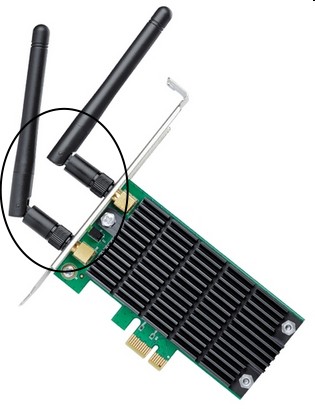
Network Adapter - TP-Link Wireless PCI Express Adapter (Archer T4E)
Router; Netgear Orbi RBR350


Thank you in advance ðŸĪĐ


View this topic in a long page with up to 500 replies per page Create new topic
 1 | 2
Oblivian
7345 posts

Uber Geek
+1 received by user: 2117

ID Verified

  #3214845 6-Apr-2024 00:34
Send private message

IP Addresses help here.


The router IP address (LAN)


The router WiFi DHCP address range (if its different)


And the IP/Gateway/DNS the PC has.


DNS = device to help map names to IP addresses


Gateway = how to get out beyond local addresses. 


Mistake people make is fixing or setting them to the wrong side of the network. Where it can't get to. And resets may set the addressing wrong.


RunningMan
9185 posts

Uber Geek
+1 received by user: 4838


  #3214899 6-Apr-2024 08:19
Send private message

And the wifi link speed would be good, both when works and when it doesn't.


Network properties in Windows settings should tell you this.


Goosey
3016 posts

Uber Geek
+1 received by user: 870

Subscriber

  #3214961 6-Apr-2024 09:35
Send private message

Is your wifi router sitting on a bench, or closer to the ground or….


Is there anything else next to the router or near the router I.e. cordless phone base, microwave, any other device ?


could it be channel interference ?  Have you scanned around to see what’s what in the close area?


sezsays

14 posts

Geek
+1 received by user: 8


  #3215040 6-Apr-2024 11:51
Send private message

Oblivian:


IP Addresses help here.


The router IP address (LAN)


The router WiFi DHCP address range (if its different)


And the IP/Gateway/DNS the PC has.


DNS = device to help map names to IP addresses


Gateway = how to get out beyond local addresses. 


Mistake people make is fixing or setting them to the wrong side of the network. Where it can't get to. And resets may set the addressing wrong.


Hey thanks for being willing to help. Given that I'm a noob I've had to google how to find that specific info (via CMD prompts and also via network settings from start menu).


I've brought it all up via CMD - ipconfig /all - I just need to clarify exactly what you need and what is safe to share in an open forum like this. (I may have watched too many shows about cyber crime and hackers 😅). Given that I don't understand a lot of these terms being that I'm a noob, I'm not sure exactly what I need to show you sorry. I could just copy and paste everything it brought up but I'm not sure if that's what you need and if it's safe. 


Here's the headings - tell me what you need. (Sorry - the language is all new and confusing to me...)


Wireless LAN adapter Wi-Fi:


   Connection-specific DNS Suffix  . :
   Description . . . . . . . . . . . : TP-Link Wireless PCI Express Adapter
   Physical Address. . . . . . . . . : 
   DHCP Enabled. . . . . . . . . . . : Yes
   Autoconfiguration Enabled . . . . : Yes
   IPv6 Address. . . . . . . . . . . : 
   Temporary IPv6 Address. . . . . . : 
   Link-local IPv6 Address . . . . . : 
   IPv4 Address. . . . . . . . . . . : 
   Subnet Mask . . . . . . . . . . . : 
   Lease Obtained. . . . . . . . . . : 
   Lease Expires . . . . . . . . . . : 
   Default Gateway . . . . . . . . . : 
   DHCP Server . . . . . . . . . . . : 
   DHCPv6 IAID . . . . . . . . . . . : 
   DHCPv6 Client DUID. . . . . . . . : 
   DNS Servers . . . . . . . . . . . : 
                                     
   NetBIOS over Tcpip. . . . . . . . : Enabled


Thanks so much. 


huckster
887 posts

Ultimate Geek
+1 received by user: 460

ID Verified
Lifetime subscriber

  #3215041 6-Apr-2024 12:09
Send private message


ipconfig /all will show you the IP setup of the device and by virtue of the fact that most of it is missing makes e.g. IPv4 Address it look like it's not connected to your WiFI (no IP address for example)


As above, where is the Netgear Orbi RBR350 sited? As above, is it on the floor, behind something metallic?


You could try an "ipconfig /release" then an "ipconfig /renew" in the CMD window. It may take time, paste the results here.


This should release the IP address and then try and get another one.


Oblivian
7345 posts

Uber Geek
+1 received by user: 2117

ID Verified

  #3215043 6-Apr-2024 12:25
Send private message

The details are missing because of movies

Other than needing to know your exact location and Mac address for spoofing none of those details need to be private


Shop now on Samsung phones, tablets, TVs and more (affiliate link).
Jase2985
13730 posts

Uber Geek
+1 received by user: 6202

ID Verified
Lifetime subscriber

  #3215045 6-Apr-2024 12:34
Send private message

"I may have watched too many shows about cyber crime and hackers" 


Comments like that make me think you have seen something then done something thinking its the right thing to do and its messed up your connection and caused you these issues.


sezsays

14 posts

Geek
+1 received by user: 8


  #3215083 6-Apr-2024 15:14
Send private message

Goosey:


Is your wifi router sitting on a bench, or closer to the ground or….


Is there anything else next to the router or near the router I.e. cordless phone base, microwave, any other device ?


could it be channel interference ?  Have you scanned around to see what’s what in the close area?


Hey - nothing next to the router - it's sitting on a bookshelf in the hallway in direct line of sight to the PC - nothing else nearby. Notably, as I said in my original post, my laptop and my phone both connect to wifi just fine as do my ipads and other smart devices in the home. It's ONLY the PC that is having issues. My phone stays connected until I've gone out my driveway. Also, again as I said in my original post - it was all working fine prior to upgrading Windows. 


Thanks :)


sezsays

14 posts

Geek
+1 received by user: 8


  #3215085 6-Apr-2024 15:18
Send private message

huckster:


ipconfig /all will show you the IP setup of the device and by virtue of the fact that most of it is missing makes e.g. IPv4 Address it look like it's not connected to your WiFI (no IP address for example)


As above, where is the Netgear Orbi RBR350 sited? As above, is it on the floor, behind something metallic?


You could try an "ipconfig /release" then an "ipconfig /renew" in the CMD window. It may take time, paste the results here.


This should release the IP address and then try and get another one.


The details are missing because I removed them as I wasn't sure what should be posted on an open forum 😉
The router is on a bookshelf, nothing else near it. Also - as I've said in my original post - all other devices; laptop, ipads, smart devices, tv's, etc etc all connect to the wifi without any issue whatsoever and that's how I'm sure it's the PC that has the issue - not specifically the wifi/router/speed etc. 


Thank you :)


sezsays

14 posts

Geek
+1 received by user: 8


  #3215087 6-Apr-2024 15:22
Send private message

Jase2985:


"I may have watched too many shows about cyber crime and hackers" 


Comments like that make me think you have seen something then done something thinking its the right thing to do and its messed up your connection and caused you these issues.


LOL!! I can see why you'd say that - but if you read my original post, you'll see that I only did the "fix" AFTER I was having connection issues, which came after I upgraded Windows. I found online that others had the same exact issues after upgrading so found the fixes they used, and as I said they work and then they don't and then they do.... example, I'm using the PC right now, but I might start it up again tomorrow and be back where I started with it not working. In fact, yesterday I sparked it up to watch Apple TV while doing some work and it wouldn't connect so had to do all those steps again to get it to work. 


Thanks for your input though 😆


sezsays

14 posts

Geek
+1 received by user: 8


  #3215090 6-Apr-2024 15:29
Send private message

Oblivian: The details are missing because of movies

Other than needing to know your exact location and Mac address for spoofing none of those details need to be private


Thanks for that Oblivian - and yes you're right, it's missing because of movies 😅. Here's the details (non-movie style ðŸĪĶ‍♀ïļ)


Wireless LAN adapter Wi-Fi:
   Connection-specific DNS Suffix  . :
   Description . . . . . . . . . . . : TP-Link Wireless PCI Express Adapter
    DHCP Enabled. . . . . . . . . . . : Yes
   Autoconfiguration Enabled . . . . : Yes
   IPv6 Address. . . . . . . . . . . : 2404:4408:6a34:7f00:7d16:e228:f5a4:133f(Preferred)
   Temporary IPv6 Address. . . . . . : 2404:4408:6a34:7f00:3165:c7f:4695:d81e(Preferred)
   Link-local IPv6 Address . . . . . : fe80::3ac0:96c8:4eed:df6a%10(Preferred)
   IPv4 Address. . . . . . . . . . . : 192.168.1.11(Preferred)
   Subnet Mask . . . . . . . . . . . : 255.255.255.0
   Lease Obtained. . . . . . . . . . : Friday, 5 April 2024 9:39:34 pm
   Lease Expires . . . . . . . . . . : Sunday, 7 April 2024 3:01:02 pm
   Default Gateway . . . . . . . . . : fe80::e246:eeff:fe36:2c0c%10
                                       192.168.1.1
   DHCP Server . . . . . . . . . . . : 192.168.1.1
   DHCPv6 IAID . . . . . . . . . . . : 600848197
   DHCPv6 Client DUID. . . . . . . . : 00-01-00-01-29-5E-F1-B3-18-C0-4D-3D-E7-57
   DNS Servers . . . . . . . . . . . : fe80::e246:eeff:fe36:2c0c%10
                                       192.168.1.1
   NetBIOS over Tcpip. . . . . . . . : Enabled


Shop now for Dyson appliances (affiliate link).
Jase2985
13730 posts

Uber Geek
+1 received by user: 6202

ID Verified
Lifetime subscriber

  #3215094 6-Apr-2024 15:38
Send private message

turn off IPv6, you shouldnt need it on your local network


huckster
887 posts

Ultimate Geek
+1 received by user: 460

ID Verified
Lifetime subscriber

  #3215096 6-Apr-2024 15:40
Send private message

That all looks ok to me. I also assume you have the aerials screwed on at the back of the PC?


sezsays

14 posts

Geek
+1 received by user: 8


  #3215101 6-Apr-2024 15:50
Send private message

Jase2985:


turn off IPv6, you shouldnt need it on your local network


Cool, done thank you. Do you think that could be the cause? 


Cheers  and thanks for not mocking me and making me feel stupid - it's not easy coming in to a forum like this to say you need help - especially when you've already dabbled and know people might mock you for it 😌


sezsays

14 posts

Geek
+1 received by user: 8


  #3215102 6-Apr-2024 15:52
Send private message

huckster:


That all looks ok to me. I also assume you have the aerials screwed on at the back of the PC?


Hey thanks for that. No there aren't any aerials and to be honest, I did wonder about that but again, given that it was working fine up to the point where I upgraded Windows I wasn't sure it would help. I'd certainly be happy to though if it turns out to be a contributing factor or cause. :)


 1 | 2
View this topic in a long page with up to 500 replies per page Create new topic


Geekzone Live »

Try automatic live updates from Geekzone directly in your browser, without refreshing the page, with Geekzone Live now.


Are you subscribed to our RSS feed? You can download the latest headlines and summaries from our stories directly to your computer or smartphone by using a feed reader.