Geekzone: technology news, blogs, forums
Guest
Welcome Guest.
You haven't logged in yet. If you don't have an account you can register now.


Tatou

244 posts

Master Geek
+1 received by user: 58


#315073 11-Jun-2024 13:36
Send private message

In March last year I managed to get my Asus RT-AX3000 router working with 2 degrees fibre.


See https://www.geekzone.co.nz/forums.asp?forumid=81&topicid=303926


I then set up a Mesh with another Asus router and everything has gone tickity boo since then.


Everything just worked perfectly with many devices connected by wifi and ethernet. Solid speedy and reliable internet/LAN with a static IP address.


UNTIL TODAY


It was working at 3.30am this morning and when I came to use it at 9.30am the WAN light on the router was red.


I did all the normal stuff, reboot computer, reboot router, reboot the Chorus ONT, reboot network switch, checked the WAN ethernet cable from the ONT to the router with a tester- all OK


Nothing worked. 


Then rang the 2 degrees helpline. after 60 minutes I got a "tech" who tried to help even though I did not have the Netgear router.


He basically went down the same path following the advice on the 2 degrees website that in the previous discussion last year we knew did not work. 


Anyway I finally gave up and closed the call.


Luckily I had decided to get the 2 degrees ORBI router last year and it has sat unopened until today.


I installed it as per the instructions and the phone app and I am connected again after rebooting the computer and network switches.


Also I can suspect it that 2 degrees have changed a protocol somewhere that stopped my router connecting. 


The router did not have a login i.e user name and password. As you can see in the original discussion setting the IPTV to 2degrees and turning off the account tab made it all work 


Anyone have any ideas or inside knowledge to what may have happened as I would like to get the Asus system backup and running. 


View this topic in a long page with up to 500 replies per page Create new topic
 1 | 2
schmoogol
77 posts

Master Geek
+1 received by user: 16

ID Verified

  #3247467 11-Jun-2024 13:43
Send private message

Do you have ‘Enable VPN + DHCP Connection’ switched to ‘No? That is known to cause issues with other ISPs if on ‘Yes’.


Tatou

244 posts

Master Geek
+1 received by user: 58


  #3247468 11-Jun-2024 13:52
Send private message

Thanks for the comment


I just realised I will have to add network cable to connect to my Asus :-) so I can check stuff. Will do so and check your suggestion.


What I am mystified about it was all OK for over a year until this morning? 


michaelmurfy
meow
13579 posts

Uber Geek
+1 received by user: 10910

Moderator
ID Verified
Trusted
Lifetime subscriber

  #3247479 11-Jun-2024 14:47
Send private message

Firmware update perhaps? Confirm it is off.


Caused problems with multiple providers including Quic and Spark also: https://www.geekzone.co.nz/forums.asp?forumid=39&topicid=314911 


Michael Murphy | https://murfy.nz
Referral Links: Quic Broadband (use R122101E7CV7Q for free setup)

Are you happy with what you get from Geekzone? Please consider supporting us by subscribing.
Opinions are my own and not the views of my employer.


Tatou

244 posts

Master Geek
+1 received by user: 58


  #3247482 11-Jun-2024 15:01
Send private message

Thanks for the advice and the link. 


My router firmware is set for a manual update so it would not have changed something last night.


I will check what the recent firmware update did.


Tatou

244 posts

Master Geek
+1 received by user: 58


  #3247497 11-Jun-2024 15:54
Send private message

michaelmurfy:


Firmware update perhaps? Confirm it is off.


Caused problems with multiple providers including Quic and Spark also: https://www.geekzone.co.nz/forums.asp?forumid=39&topicid=314911 


Thanks Micheal


I don't think that option is in the Asus RT-AX3000 firmware. Latest date I upgraded was in May.


I think this setting is related to the issue in the link you provided and 2degrees has just taken action about it. 


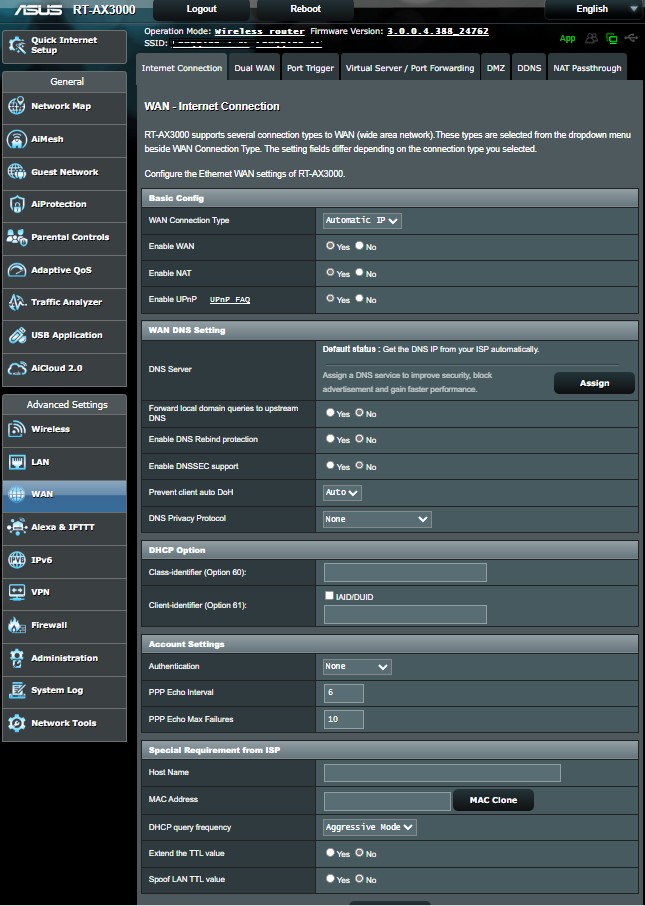
Under "Special Requirement from ISP" at the bottom of the WAN tab you have


HOST NAME   currently blank


MAC ADDRESS  currently blank however there is an option to clone MAC address


DHCP query frequency  option to have Normal Mode, Aggressive Mode or Continuous mode but not option to turn off Currently set at Normal Mode


EXTEND THE TTL VALUE - YES/NO currently set at NO


Spoof LAN TTL Value YES/NO currently set at NO


There is nothing in the manual about this part of the WAN tab 


However I found this on Reddit and I will give it a go regarding the MAC cloning.


"Just got off the phone with asus. I have 2 asus routers both had the same problem one is the ax3000 just got on friday. What they said was you have to clone your mac address to fix this problem. Its in the wan settings, Also change the DHCP query frequency from aggressive to normal its right under the mac address. Worked for me tried it on my old router and it fixed that one too.  


mrgsm021
1538 posts

Uber Geek
+1 received by user: 310

ID Verified
Trusted

  #3247505 11-Jun-2024 16:12
Send private message

I wonder if you were still on the old 2Degrees PPPoE authentication stack and got migrated to the new DHCP stack this morning, causing the connection to stop working?


Want to support Geekzone and browse the site without the ads? Subscribe to Geekzone now (monthly, annual and lifetime options).
michaelmurfy
meow
13579 posts

Uber Geek
+1 received by user: 10910

Moderator
ID Verified
Trusted
Lifetime subscriber

  #3247506 11-Jun-2024 16:14
Send private message

DO NOT USE MAC CLONING!


Ensure the firmware is updated. Even switch it to PPPoE for now (should be good with any username / password). But don't ever use MAC Cloning.


Michael Murphy | https://murfy.nz
Referral Links: Quic Broadband (use R122101E7CV7Q for free setup)

Are you happy with what you get from Geekzone? Please consider supporting us by subscribing.
Opinions are my own and not the views of my employer.


Tatou

244 posts

Master Geek
+1 received by user: 58


  #3247507 11-Jun-2024 16:19
Send private message

Cloning the MAC made no difference ( see above)


My conclusion is the Asus RT-AX3000 will not work with 2degrees fibre anymore.


I would interested to see if anyone else can get it working.


On another point does anyone know how to change the Netgear ORBI login from "admin" 


Tatou

244 posts

Master Geek
+1 received by user: 58


  #3247567 11-Jun-2024 17:20
Send private message

michaelmurfy:


DO NOT USE MAC CLONING!


Ensure the firmware is updated. Even switch it to PPPoE for now (should be good with any username / password). But don't ever use MAC Cloning.


Thanks. Advice noted :-) 


I will try the PPPoE


k1w1k1d
1711 posts

Uber Geek
+1 received by user: 1305


  #3247568 11-Jun-2024 17:25
Send private message

RT-AX3000 working fine here on Enable network in Christchurch with 2Degrees. Nest system with an RP-AX56.


Tatou

244 posts

Master Geek
+1 received by user: 58


  #3247571 11-Jun-2024 17:53
Send private message

Thanks to all that have replied 


I have it working!!


k1w1k1d


That WAN configuration is exactly the one I had except my DCHP query frequency was NORMAL before it stopped working.


michaelmurfy 


I changed my WAN connection type from Automatic to PPPoE and added username and password. 


Changing to PPPoE opened up the configuration "Enable VPN + DHCP Connection" option that was not there under automatic. It defaulted to ON and I turned it to OFF.


Saved configuration and rebooted and the router connected.


I have got a few messages from my Synology NAS so I will have to look at them 


Port forwarding rules could not be reapplied. Please restart UPnP/NatPmP protocol on the router or restart the router.


Due to changes in default gateway settings, the feature of port forwarding rules has been disabled. Please check your network settings.


but we are back in business!!!


Thanks to everyone for taking time to comment.


Additional info


Because I couldn't stop fiddling having changed "Enable VPN + DHCP Connection" option to NO under PPPoE I then changed the WAN connection type BACK to Automatic (as I had when it wouldn't connect) thus not needing login details, saved the changes and rebooted the modem. 


The router connected to 2 degrees as it did yesterday. 


Conclusion it was the "Enable VPN + DHCP Connection" option that was the problem.


Note: The WAN light on the router used to flicker all the time. It does not do so at all now.


Shop now for Lego sets and other gifts (affiliate link).
Tatou

244 posts

Master Geek
+1 received by user: 58


  #3247574 11-Jun-2024 17:59
Send private message

mrgsm021:


I wonder if you were still on the old 2Degrees PPPoE authentication stack and got migrated to the new DHCP stack this morning, causing the connection to stop working?


Thanks for commenting. 


I wasn't using PPPoE as far as I know. The WAN selection type was Automatic IP. and I did not have to log in.


But now using PPPoE with login and password I am back working. This option allowed me to turn Enable VPN + DHCP Connection to NO


saf

saf
221 posts

Master Geek
+1 received by user: 533

ID Verified
Trusted
Vetta Group
Subscriber

  #3247582 11-Jun-2024 18:47
Send private message

Tatou:


Changing to PPPoE opened up the configuration "Enable VPN + DHCP Connection" option that was not there under automatic. It defaulted to ON and I turned it to OFF.


Bloody ASUS and their 🇷🇺 ISP support! Almost need to petition retailers for a big sticker on the box when sold. 😅


My views are as unique as a unicorn riding a unicycle. They do not reflect the opinions of my employer, my cat, or the sentient coffee machine in the break room.


freitasm
BDFL - Memuneh
80646 posts

Uber Geek
+1 received by user: 41030

Administrator
ID Verified
Trusted
Geekzone
Lifetime subscriber

  #3247583 11-Jun-2024 19:00
Send private message

@Tatou:


I have got a few messages from my Synology NAS so I will have to look at them 


Port forwarding rules could not be reapplied. Please restart UPnP/NatPmP protocol on the router or restart the router.


Due to changes in default gateway settings, the feature of port forwarding rules has been disabled. Please check your network settings.


Please never, ever use port forward or UPNP. 


To make it clear: do not use port forward or UPNP.


Using a port forward is asking for your NAS to be hijacked at some point or another.


If you need remote access to your NAS, use something like Tailscale.


Referral links: Quic Broadband (free setup code: R587125ERQ6VE) | Samsung | AliExpress | Wise | Sharesies 


Support Geekzone by subscribing (browse ads-free), or making a one-off or recurring donation through PressPatron.


Tatou

244 posts

Master Geek
+1 received by user: 58


  #3247632 11-Jun-2024 19:14
Send private message

Thanks for the comment


Port forwarding has always been off on the router and in the NAS. I don't know why Synology DMS complained when I changed to PPPoE Wan connection. 


 1 | 2
View this topic in a long page with up to 500 replies per page Create new topic


Geekzone Live »

Try automatic live updates from Geekzone directly in your browser, without refreshing the page, with Geekzone Live now.


Are you subscribed to our RSS feed? You can download the latest headlines and summaries from our stories directly to your computer or smartphone by using a feed reader.