|
|
|
https://forum.xda-developers.com/tools/general/huawei-firmware-finder-team-mt-t3469146
the app has instructions in it on how to update your phone
Jase2985:
https://forum.xda-developers.com/tools/general/huawei-firmware-finder-team-mt-t3469146
the app has instructions in it on how to update your phone
Yeah I found that thread. It's 50 pages, I've just started reading it. There's no clear instructions I've found so far.
The problem with XDA is it's 90% beginners, 10% absolute experts. The experts can't write documentation or procedures to save themselves. The beginners are all stumbling in the dark trying to work things out.
Also, there's some reference to changing your PC IP address to act as a proxy. That's not well documented.
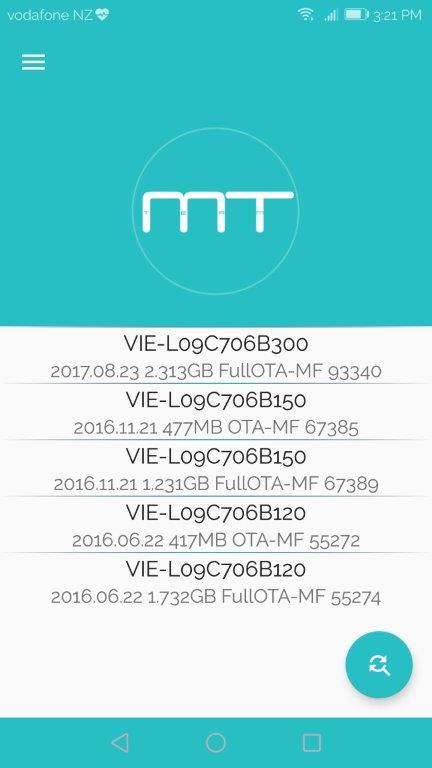
Presuming your using the firmware finder, click on the three lines at the top left and click on phone info. It will tell you what model of phone you have. Mine for example shows VIE-L09C706B300. VIE is single sim. L09 is the phone model. C706 is the country/vender code for the firmware. B300 is the firmware version. C706B150 is the latest NZ (2Degrees/Spark/Vodafone) Android 6. B300 is Android 7.
So if its an NZ New Huawei P9 Plus search for VIE-L09C706. This should show you B120,B150 and B300. Always use the Full Over The Air Updates. FullOTA.

mine asked for permissions to access the phone and found stuff automatically
inside the app it had instruction on what to do to do the proxy thing, and also how to install it.
1/ Download Firmware Finder on your phone. You do not need a PC to do any of this. Just a wireless internet connection.
https://play.google.com/store/apps/details?id=com.teammt.gmanrainy.huaweifirmwarefinder&hl=en
2/ open Firmware Finder. Go to settings. Enable install by proxy. When you enable it will prompt you to install the addon. Open the addon after installing but then close.
4/ now go back to Firmware Finder and Look for the OTA Update. Select it then press SEND FIRMWARE TO UPDATER.
you will be brought back to the addon app.
5/ Go to phones wifi settings, select wifi network of choice/long press]>modify>show advanced options>proxy set to MANUAL> set name to localhost >set port to 8080>ignore bypass proxy>save/connect...
6/ go to ur updater app (in your settings that checks for updates). If you try and update it should show the b300 version. If you try to install it may fail. Click on the menu at the bottom of the screen and select Download Latest Full package.
Thanks for the instructions @moodie007, much appreciated :)
I installed firmware finder and the proxy. I didn't configure the proxy. I went into the firmware finder, the latest version available is EVA-L09C900B151 from 2016.04.23. I have firmware version B137.
When I click on the B151 firmware there's no open " send firmware to updated". I have download, check firmware access, get an update through proxy. Couple screenshots below.
When I configure the proxy through my WiFi connection and then check for updates I get the same list.
Any advice? I'm trying the update to 151, and then maybe it'll take me to 300.
you only have the standard p9 right?
Jase2985:
you only have the standard p9 right?
Yep.
I've just told it to do the update to 151. Maybe that will let me jump up to 300 afterwards.
It says "software installation failed" when it tried to install the 151 update.
This phone might not be NZ new. It came from Mauricio, who I think got it direct from Huawei.
Update: I tried "download full package". It gave me the option of a "quick update" to 151, which failed as well. Both the full package (which results in the quick update) and the standard update fails.
its an international version
Jase2985:
its an international version
Ah ok. So any ideas about what I should do?
|
|
|