Geekzone: technology news, blogs, forums
Guest
Welcome Guest.
You haven't logged in yet. If you don't have an account you can register now.


quickymart

14941 posts

Uber Geek
+1 received by user: 13956

ID Verified

#318151 20-Dec-2024 22:14
Send private message

I was prompted to install an update for Windows 11 (24H2?) the other morning. The download (4.3GB) completed successfully but the file install couldn't be completed, for some reason.


I gave it another crack this morning and it seems to have re-downloaded the file from the other day, and now my C: drive is running out of space and the install can't proceed:



Is it possible to somehow move 25-30GB of free space on D: and allocate it to C: ? I don't mind moving everything off D: and then blowing it away and moving stuff back to it afterwards.


I'm probably not using the right search terms on Google - plenty on "how to delete a partition" but that's not what I'm trying to do.


Alternatively, is there a way to delete this update file (I suspect I have two copies of it) and then try and download it/install it again?



Filter this topic showing only the reply marked as answer View this topic in a long page with up to 500 replies per page Create new topic
 1 | 2
mentalinc
3384 posts

Uber Geek
+1 received by user: 1023

Trusted

  #3322909 20-Dec-2024 22:18
Send private message

Do you have a pile of photos or videos in your "My Documents" folder?


You could 'move' the files to D drive to free up some space, then move them back.


But note if that is an SSD, its going to be under performing being almost full.


CPU: AMD 5900x | RAM: GSKILL Trident Z Neo RGB F4-3600C16D-32GTZNC-32-GB | MB:  Asus X570-E | GFX: EVGA FTW3 Ultra RTX 3080Ti| Monitor: LG 27GL850-B 2560x1440


Quic: https://account.quic.nz/refer/473833 R473833EQKIBX 


Jase2985
13735 posts

Uber Geek
+1 received by user: 6216

ID Verified
Lifetime subscriber

  #3322912 20-Dec-2024 22:56
Send private message

You really need a bigger SSD, 256GB just isn't big enough these days if you are storing stuff on it and not wanting to constantly manage the space.


timmmay
20859 posts

Uber Geek
+1 received by user: 5350

Trusted
Lifetime subscriber

  #3322928 21-Dec-2024 07:15
Send private message

Run "Disk Cleanup", and when it loads hit the "Clean Up System Files" button. That will free up space. Other than that, work out what is taking up the space with something like "Treesize Free", run in Admin mode.


I have a 120GB partition on my SSD for Windows and it works fine, I don't run out of space. I keep it small so I can take OS images that are a reasonable size, all data goes onto other disks. I don't have any games on the computer though.


OldGeek
989 posts

Ultimate Geek
+1 received by user: 409

ID Verified
Lifetime subscriber

  #3322936 21-Dec-2024 08:49
Send private message

Assuming both partitions are on a single physical drive, you can use partition manager software (such as Partition Wizard https://www.partitionwizard.com) to shrink D: then expand C:.  PW has a free version.


-- 

OldGeek.


Quic referal code: https://account.quic.nz/refer/581402 and use this code for free setup: R581402E48MJA


Jase2985
13735 posts

Uber Geek
+1 received by user: 6216

ID Verified
Lifetime subscriber

  #3322938 21-Dec-2024 09:06
Send private message

timmmay:


Run "Disk Cleanup", and when it loads hit the "Clean Up System Files" button. That will free up space. Other than that, work out what is taking up the space with something like "Treesize Free", run in Admin mode.


I have a 120GB partition on my SSD for Windows and it works fine, I don't run out of space. I keep it small so I can take OS images that are a reasonable size, all data goes onto other disks. I don't have any games on the computer though.


And while that's fine, and it does work, it takes effort to set up, and over time requires you to constantly keep track of space. 


timmmay
20859 posts

Uber Geek
+1 received by user: 5350

Trusted
Lifetime subscriber

  #3323005 21-Dec-2024 12:15
Send private message

Jase2985:


And while that's fine, and it does work, it takes effort to set up, and over time requires you to constantly keep track of space. 


Or just pick a reasonable space for your usage when you do the partitioning. I just rechecked, I have a 200GB partition, 119GB used, 80GB free. I never check for free space, if I run out Windows will tell me, Hard Disk Sentinel might tell me in advance.


Shop now for Lego sets and other gifts (affiliate link).
ANglEAUT
altered-ego
2436 posts

Uber Geek
+1 received by user: 842

Trusted
Lifetime subscriber

  #3323053 21-Dec-2024 18:21
Send private message

quickymart: ... Is it possible to somehow move 25-30GB of free space on D: and allocate it to C: ? ... 


For that, you would have to show us a screenshot of the Disk Management Console (Start > Run > diskmgmt.msc from memory) If both the C: & D: drive are partitions of the same physical disk, you can achieve what you suggested.


Please keep this GZ community vibrant by contributing in a constructive & respectful manner.


MadEngineer
4591 posts

Uber Geek
+1 received by user: 2570

Trusted

  #3323110 21-Dec-2024 21:21
Send private message

timmmay:

Run "Disk Cleanup", and when it loads hit the "Clean Up System Files" button. That will free up space. Other than that, work out what is taking up the space with something like "Treesize Free", run in Admin mode.


I have a 120GB partition on my SSD for Windows and it works fine, I don't run out of space. I keep it small so I can take OS images that are a reasonable size, all data goes onto other disks. I don't have any games on the computer though.

Short of a new drive, this.


You're not on Atlantis anymore, Duncan Idaho.

1024kb
1197 posts

Uber Geek
+1 received by user: 519

ID Verified
Lifetime subscriber

  #3323111 21-Dec-2024 22:21
Send private message

The 4.3GB Windows update download is not the biggest storage space thief. The update process replaces your current Winstall & instead of handily deleting the existing Winstallation, simply renames it Windows.old & leaves it there - often 30GB+. Not only that, but there’s a complicated trail of permissions that won’t let you right-click delete - this is where @timmay suggestion kicks in - you’ll delete Windows.old & all the temporary files from the update via System / Storage / Storage Used On Other Drives (even though it’s not on other drives)

The amount of storage taken up by .dmp files, Windows Reports / Update files / .tmp files & other detritus is obscene. It’s probably quite effective as a marketing tool to convince non-techies that it’s time to buy a new computer because you’ve filled this one up,

K8Toledo
1018 posts

Uber Geek
+1 received by user: 311


  #3323125 22-Dec-2024 02:01
Send private message

mentalinc:


Do you have a pile of photos or videos in your "My Documents" folder?


You could 'move' the files to D drive to free up some space, then move them back.


I also put My Docs on a separate drive, although @quickymart, in your case with a single drive it may be easier to merge both partitions, using an app like EASUS....


CCleaner's Disk Analyser is pretty handy for finding large files/folders.


1101
3141 posts

Uber Geek
+1 received by user: 1143


  #3324425 25-Dec-2024 16:53
Send private message

Honestly, just buy a bigger HD . 
You'll be forever trying to move things around to free up space on the C: 


For now ....
If C & D are a single HD , merge them into one partition . 
or Move all your photos , movies , mp3's , Docs etc to the D:

Running disk cleanup wont really free up the space you'll need to keep this PC running smoothly . Strange things will start to happen 
when the C: runs too low on free space


Shop now on Samsung phones, tablets, TVs and more (affiliate link).
ANglEAUT
altered-ego
2436 posts

Uber Geek
+1 received by user: 842

Trusted
Lifetime subscriber

  #3324529 26-Dec-2024 08:54
Send private message

For others going through the same problem in future.


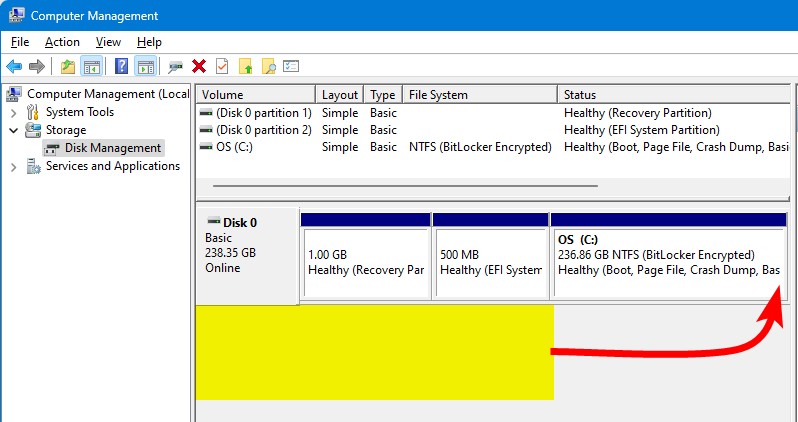
Is the 'D Drive (D:)' on the same line as Disk 0 and 'OS (C:)' or is 'D Drive (D:)' on its own line for Disk 1?


If all on same line as part of Disk 0, you can merge / resize partitions to fit your needs.


If 'OS (C:)' is on Disk 0 and 'D Drive (D:)' is on Disk 1, your only options are a disk clean up or replacing with a larger disk. You can't merge / resize partitions.


If you want to do a disk clean up for immediate results, run these commands from an elevated PowerShell session


====


Clear-RecycleBin -Force
$driveName = (Get-ChildItem -Path Env:\SystemDrive).Value
Remove-Item -ErrorAction SilentlyContinue -Recurse -Force -Path $driveName\`$Recycle.Bin
Remove-Item -ErrorAction SilentlyContinue -Recurse -Force -Path $driveName\ProgramData\Microsoft\Windows\WER
Remove-Item -ErrorAction SilentlyContinue -Recurse -Force -Path $driveName\WINDOWS\Logs
Remove-Item -ErrorAction SilentlyContinue -Recurse -Force -Path $driveName\WINDOWS\Temp
Remove-Item -ErrorAction SilentlyContinue -Recurse -Force -Path $driveName\WINDOWS\SoftwareDistribution\Download


=====


Running the Disk Cleanup Wizard now will also finish a lot faster.


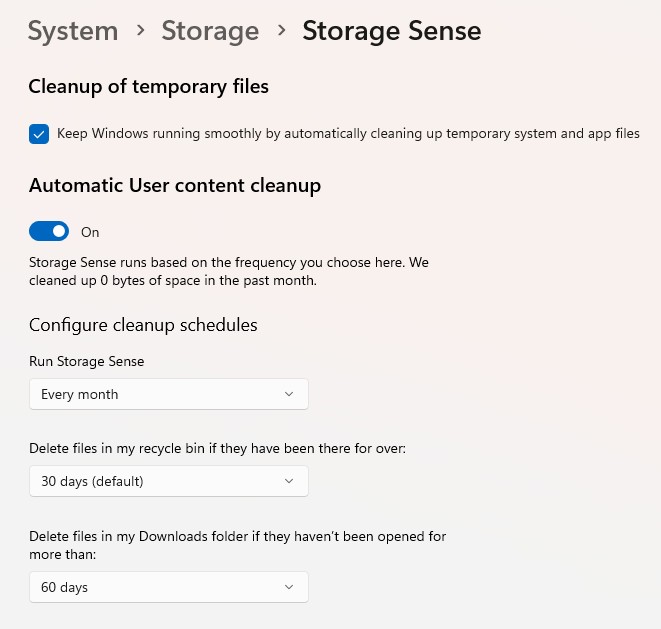
For ongoing maintenance, enable Storage sense & set these values


Please keep this GZ community vibrant by contributing in a constructive & respectful manner.


quickymart

14941 posts

Uber Geek
+1 received by user: 13956

ID Verified

  #3327983 5-Jan-2025 22:59
Send private message

Sorry for not coming back to this thread - I got caught up with arranging Christmas stuff. I did try Minitool but it apparently it only works if the file type of the drive is NTFS and this one is Bitlocker, so I may need to look at something like ANglEAUT suggested. Disk Cleanup only freed up about 60MB, sadly.


Thanks for all the suggestions, will try them soon and see how it goes, although I agree I may ultimately need a new drive - just need to get Christmas bills out of the way first.


Oblivian
7345 posts

Uber Geek
+1 received by user: 2117

ID Verified

  #3327988 5-Jan-2025 23:17
Send private message

Bitlocker is encrypted. Still NTFS.

But to do any disk changes outside the OS It will need to be decrypted to manipulate.

quickymart

14941 posts

Uber Geek
+1 received by user: 13956

ID Verified

  #3335005 24-Jan-2025 10:11
Send private message

ANglEAUT:


For others going through the same problem in future.


Is the 'D Drive (D:)' on the same line as Disk 0 and 'OS (C:)' or is 'D Drive (D:)' on its own line for Disk 1?


If all on same line as part of Disk 0, you can merge / resize partitions to fit your needs.


If 'OS (C:)' is on Disk 0 and 'D Drive (D:)' is on Disk 1, your only options are a disk clean up or replacing with a larger disk. You can't merge / resize partitions.


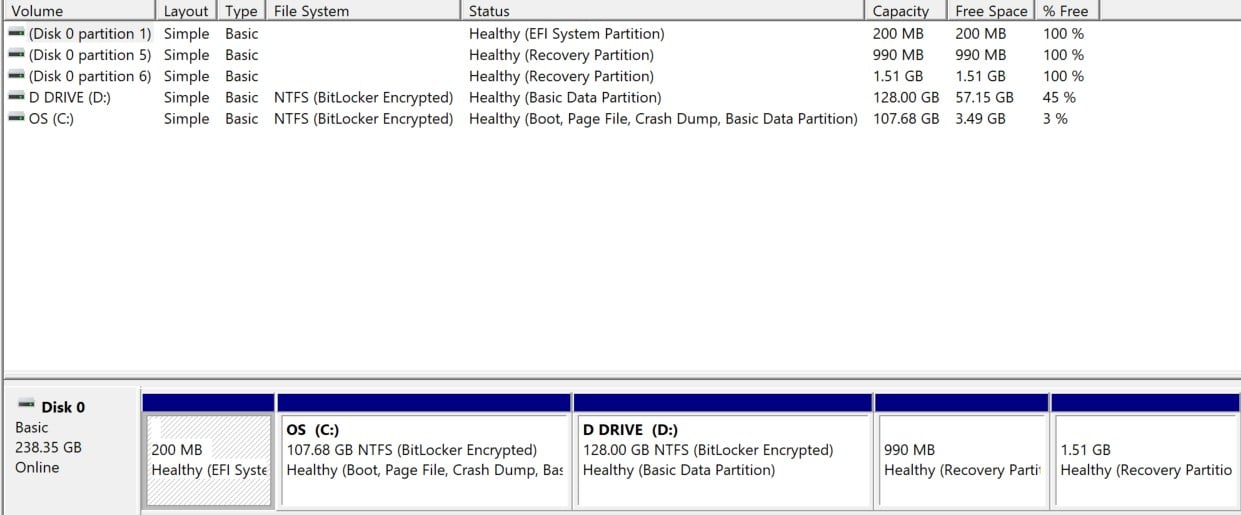
Had a free minute so went in and had a look at this - this is how mine looks:


If I correctly understand what you're saying I should be able to increase the size of C: from here and take some away from D: - they're all on the same physical SSD.


 1 | 2
Filter this topic showing only the reply marked as answer View this topic in a long page with up to 500 replies per page Create new topic


Geekzone Live »

Try automatic live updates from Geekzone directly in your browser, without refreshing the page, with Geekzone Live now.


Are you subscribed to our RSS feed? You can download the latest headlines and summaries from our stories directly to your computer or smartphone by using a feed reader.