Geekzone: technology news, blogs, forums
Guest
Welcome Guest.
You haven't logged in yet. If you don't have an account you can register now.


FieldMouse

112 posts

Master Geek
+1 received by user: 15


#324259 19-Mar-2026 15:10
Send private message quote this post

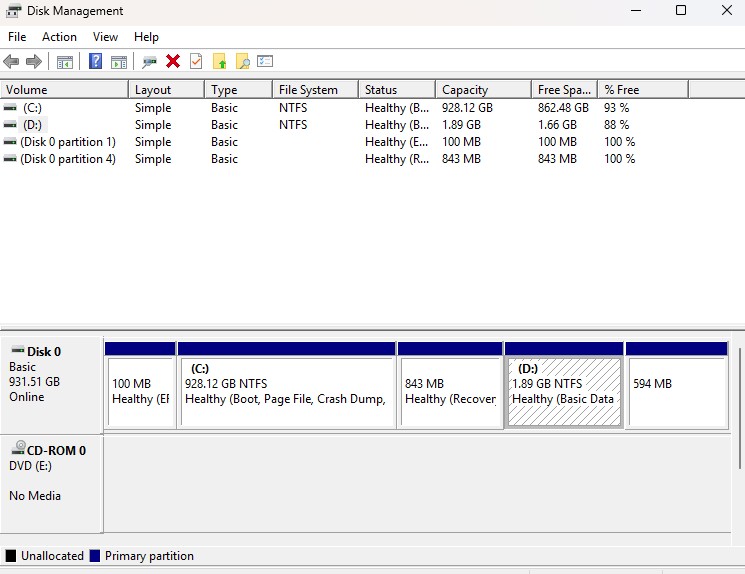
I am working on a new desktop computer for a friend. The drive is a 1TB SSD and the setup is as below.


I want to have 2 drives of a similar size (C: & D:), just to separate any files that the user creates away from the C: Drive.
There is already a D: Drive that contains OEM software and drivers and I thought I could extend that.
I shrunk the C: Drive successfully and then tried to extend the D: Drive, however the option to extend was greyed out.


I could create a new drive using the space I created by shrinking the C: drive and move the OEM files to the new drive, however I am left with 1.89GB of wasted space.

What is stopping me from extending the existing D: drive?


Create new topic
richms
29098 posts

Uber Geek
+1 received by user: 10207

Trusted
Lifetime subscriber

  #3471722 19-Mar-2026 15:14
Send private message quote this post

The recovery partition in the way. You need some more advanced partition management tools. There are free windows ones but they keep moving features to the paid versions, otherwise gparted on a linux bootable USB will move things around and resize them. Usual caveats with screwing with drives apply, dont do it to drives with anything irreplaceable on it. Should be backed up but we all know how useless people are at backing up.


Richard rich.ms


mentalinc
3384 posts

Uber Geek
+1 received by user: 1023

Trusted

  #3471728 19-Mar-2026 15:23
Send private message quote this post

agree Gparted good option, make sure there are backups when doing these sort of changes.


But partitioning a 1TB drive probably not the best course of action.


CPU: AMD 5900x | RAM: GSKILL Trident Z Neo RGB F4-3600C16D-32GTZNC-32-GB | MB:  Asus X570-E | GFX: EVGA FTW3 Ultra RTX 3080Ti| Monitor: LG 27GL850-B 2560x1440


Quic: https://account.quic.nz/refer/473833 R473833EQKIBX 


FieldMouse

112 posts

Master Geek
+1 received by user: 15


  #3471804 19-Mar-2026 17:00
Send private message quote this post

Thanks
Looks like best option is to change the drive letter of the existing D: drive and leave it there.
Then shrink the C: drive and create a new D: drive


Will that achieve the goal without damaging anything?


Create new topic


Geekzone Live »

Try automatic live updates from Geekzone directly in your browser, without refreshing the page, with Geekzone Live now.


Are you subscribed to our RSS feed? You can download the latest headlines and summaries from our stories directly to your computer or smartphone by using a feed reader.