Geekzone: technology news, blogs, forums
Guest
Welcome Guest.
You haven't logged in yet. If you don't have an account you can register now.


jschuld

23 posts

Geek
+1 received by user: 1


#303760 7-Mar-2023 20:16
Send private message

Hi,


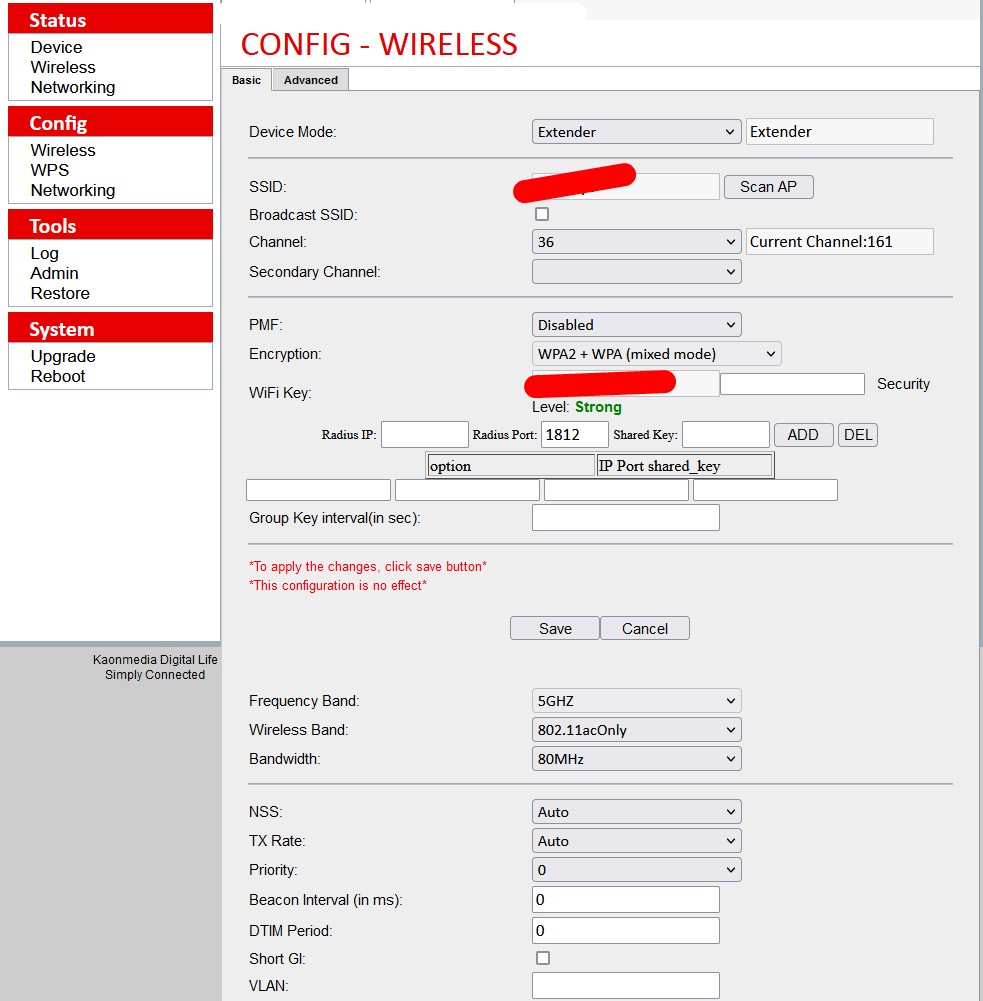
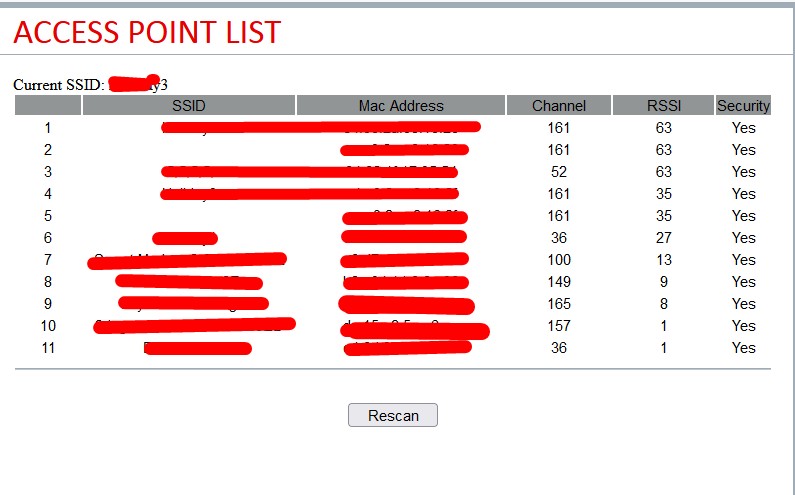
I have a couple of Vodafone UX2190 devices but I can find very little information about them. They work as an AP, and can login with vodafone/vodafone as password but I can't seem to figure out how to set them up as a station. From what I understand you should be able to set it up to login to your WiFi network, and then connect a device to the Ethernet port.


Does anyone have any manuals or an idea on how to set this up?


Thanks


J


Create new topic
froob
698 posts

Ultimate Geek
+1 received by user: 233

Lifetime subscriber

  #3047075 7-Mar-2023 21:58
Send private message

Are you looking to use this as a wireless bridge, to connect a wired device to the remote unit? I have the quick start guide for these, which says:

Setting up your Wi-Fi Extender – Bridge Mode
1 To turn on, plug the power cables into both Wi-Fi Extenders. Check that the power (pwr) lights are on.
2 Connect 1x LAN cable to the Wi-Fi Extender which is acting as your Base Unit. Connect the other end to a spare ethernet/LAN port on your modem. Make sure the rear switch on this Wi-Fi Extender is set to AP mode.
3 Connect 1x LAN cable to the other Wi-Fi Extender. Connect the other end to your computer or other wired device e.g. TV. Make sure the rear switch on this Wi-Fi Extender is set to Station.
4 Press and hold the WPS button on the Wi-Fi Extender Base Unit for 5 seconds. The WPS light will blink. Repeat on the second Wi-Fi Extender. The WPS lights will turn solid once connected and you’ll be online and ready to go.


The key looks to be to have the switch on the first unit set to AP Mode, and the second (remote) unit set to Station Mode.


K8Toledo
1018 posts

Uber Geek
+1 received by user: 311


  #3065329 19-Apr-2023 08:09
Send private message


@jschuld


Reset then switch to Station mode and go to 192.168.1.240 -  User/Pass is Admin/@admin


Hidden settings are accessible with cosmetic filtering disabled. 


Create new topic


Geekzone Live »

Try automatic live updates from Geekzone directly in your browser, without refreshing the page, with Geekzone Live now.


Are you subscribed to our RSS feed? You can download the latest headlines and summaries from our stories directly to your computer or smartphone by using a feed reader.